Integrating with Appraise-It Pro
Before writing an integration, make sure you've enabled the Development tab for access to the Field Details Pane.
Appraise-It Pro exposes useful functionality to non-.NET applications through its COM API.
This can be particularly helpful when integrating with Microsoft Office applications.
Writing a COM Integration
To access Appraise-It Pro's functionalities via its COM API, you first need to create an IntegrationCom instance and connect to an instance of Appraise-It Pro.
Native ARM64 Support
Native ARM64 support for the COM integration API was added in Appraise-It Pro v.2.8.
- This is only available on Windows 11 if .NET Framework 4.8.1 is installed alongside Appraise-It Pro.
- This is not available on Windows 10, with or without .NET Framework 4.8.1.
- .NET Framework 4.8.1 is not automatically downloaded and installed by Appraise-It Pro, but is included by default with Windows 11 version 22H2 and later.
UAD 3.6 Support
Support for the dynamic reports required by UAD 3.6 was added in Appraise-It Pro v.3.5.
Functionality for the dynamic reports is exposed via the IIntegrationCom2 interface in Appraise-It Pro v.3.5 and newer. IIntegrationCom2 should be referenced instead of IIntegrationCom for all new integrations.
Creating an IntegrationCom Instance
Your project will need to reference one of the Sfrep.AppraiseIt.Client.Integration.Com type libraries in \Program Files\SFREP\Appraise-It Pro\Bin\Framework:
- x86 integrations should reference
Sfrep.AppraiseIt.Client.Integration.Com (x86).tlb - x64 integrations should reference
Sfrep.AppraiseIt.Client.Integration.Com (x64).tlb - ARM64 integrations should reference
Sfrep.AppraiseIt.Client.Integration.Com (ARM64).tlb
There are three ways to create an integration object:
- Create the object and attach it to a specific, running instance of Appraise-It Pro by supplying the process ID.
If Not AppraiseItProIntegration.InitializeForProcess("Third-Party Integration", 123456) Then
  MsgBox "The connection was canceled by the user."
Else
  ...
Note that in method 1, the calling application should use InitializeForProcess rather than InitializeWithPrompt.
- Create the object and choose which specific, running instance of Appraise-It Pro to use.
If Not AppraiseItProIntegration.InitializeWithPrompt("Third-Party Integration") Then
  MsgBox "The connection was canceled by the user."
Else
  ...
- Create the object and have it create a new instance of Appraise-It Pro.
If Not AppraiseItProIntegration.InitializeWithPrompt("Third-Party Integration") Then
  MsgBox "The connection was canceled by the user."
Else
  ...
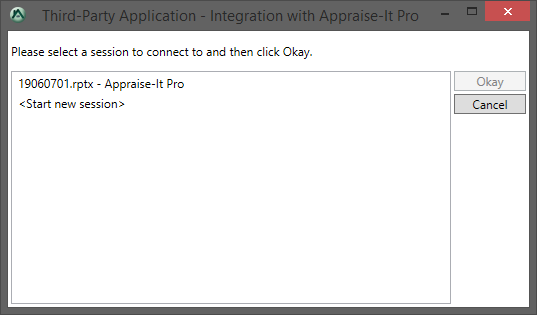
Note that the code for methods 2 and 3 is the same. The user will be prompted to select an existing instance of Appraise-It Pro or start a new instance:
Events
The integration supplies three basic events: ReportClosed, ReportLoaded, and ProcessExited.
Methods
The integration supplies many methods that expose various pieces of information about the report and Appraise-It Pro's status.
Note that some methods are only available via a transaction.
Non-transaction-based Methods
In general, methods relating directly to the application are available without a transaction.
For example, you can check to see if Appraise-It Pro is running:
Set outputCell = ThisWorkbook.Worksheets(INTEGRATION_TEST_WORKSHEET).range(CELL_RANGE_APPRAISEITPRO_RUNNING)
outputCell.Value = AppraiseItProIntegration.IsRunning
And get its process ID:
Set outputCell = ThisWorkbook.Worksheets(INTEGRATION_TEST_WORKSHEET).range(CELL_RANGE_APPRAISEITPRO_PROCESSID)
outputCell.Value = AppraiseItProIntegration.ProcessId
Transaction-based Methods
When using methods that require transactions, it's important to note the nature of a transaction.
Transactions block the user and other applications from interacting with Appraise-It Pro, so it is very important to make sure that:
- If operations performed during a transaction cause an error, the transaction exits properly.
- They are grouped, wherever possible, to minimize blocking access to Appraise-It Pro.
Error handling should be added to catch integration client errors, which indicate that the requested method is not available given the current state of the application. For example, if HasReport() returns False but subsequently ReportPath() is called, an error will be generated.
To begin a transaction, call BeginTransaction. To end it, call EndTransaction. For example:
AppraiseItProIntegration.BeginTransaction

Set outputCell = ThisWorkbook.Worksheets(INTEGRATION_TEST_WORKSHEET).range(CELL_RANGE_APPRAISEITPRO_REPORT_IS_OPEN)
outputCell.Value = AppraiseItProIntegration.HasReport()

AppraiseItProIntegration.EndTransaction
Resource Cleanup
It's important to remember to free up your resources when you've finished with an integration object by calling its Close() method.